On this page
Getting suggestions
There are three ways. They all produce the same suggestions.
Select text
Select text in another app and suggestions for it appear in the bottom-right corner. Dragging with the mouse, double-clicking, ⇧+arrow keys and ⌘A all count. This route needs Accessibility permission.
Copy with ⌘C
In apps where selecting produces nothing, copy the text with ⌘C instead. Pluck reads the clipboard and shows the same suggestions. This route works without the permission.
If you select and then press ⌘C, the suggestions appear once, not twice.
When you copy with ⌘C, a "Clipboard history" row also appears under the suggestions. It appears even when no rule matches. Selecting alone doesn't add it.
Type it with ⌃⌘I
Press ⌃⌘I and a small typing window opens near the top of the screen, centred. "Type Text…" in the menu bar menu does the same. Use it for text that isn't written down anywhere yet — a ticket key or a URL you have in your head — so there is nothing to select or copy.
Suggestions appear as you type. There is nothing to confirm (return inserts a line break). Each time you pause, the suggestions are rebuilt from what's in the field.
Your keystrokes go to the typing window, but the app in front doesn't change. Running a suggestion works as it does elsewhere: ⌃+number or a click. Running one closes the typing window and your keystrokes go back to the app you were in. The suggestions stay.
To close the typing window, press esc, press ⌃⌘I again, or click outside it. esc and a second ⌃⌘I also close the suggestions the typing produced.
While the typing window is open, selecting and copying produce no suggestions — otherwise the ⇧+arrow keys and ⌘C you press while typing would count as a selection or a copy. Closing it restores both. Opening it closes the suggestions on screen; pinned ones stay.
If no rule matches, the window says "No enabled rule matches this text." Text over 4,000 characters gets a message the same way. Neither closes the window.
While Pluck is paused, the typing window doesn't open either.

The only key Pluck ever sends to another app is ⌘V, immediately after you run a suggestion or pick an item from the clipboard history. It never sends ⌘C to read your selection.
Reading the panel
Suggestions appear in the bottom-right corner of the display the mouse pointer is on. The panel doesn't take focus, so you can keep typing in the app you were using.
Each suggestion is one row, stacked vertically. Pinned suggestions come first, then the current suggestions in the order of your rules in Settings, with translations and dictionary definitions at the bottom. Every suggestion is listed, however many there are; if they don't fit on screen, the list scrolls.
After about four seconds without activity, the column fades. Its position and numbers stay the same, and hovering over it brings it back to full strength.
Each row shows:
- its shortcut number
- the rule's icon and name
- the matched text, shortened if it's long
- when you hover over it, a pin button and an × that closes just that suggestion
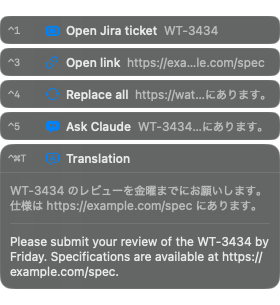
Running a suggestion
Click it, or press ⌃ and its number. Each rule has its own number: the enabled text rules in the Settings list are numbered from the top, ⌃1, ⌃2, up to ⌃0 for the tenth. A rule that didn't match leaves its number empty; the numbers after it don't shift up. A rule's suggestion always comes with the same number. You can reorder the rules in Settings (The rule list).
There are ten numbers. Suggestions from an eleventh rule onward get none, but stay in the list and can be clicked. If another app already uses one of these shortcuts, that number isn't shown. Translations and dictionary definitions have no number.
What happens depends on the kind of action: open a URL, copy to the clipboard, or run a command. Translations and definitions aren't run; the translation or definition is shown as soon as it appears. See Actions and recipes for each.
Several suggestions from one rule
When one rule matches more than one place in the selection — select WT-1 and WT-2, for example — its suggestions are grouped into one row with a count. Press that row's number or click it and the grouped suggestions are listed on their own, numbered ⌃1, ⌃2 and so on, so you can pick one. Press esc to go back to the full list.
Closing suggestions
- Press esc. Everything on screen closes. If you're choosing among a rule's grouped suggestions, it takes you back to the full list instead
- Click outside the panel. Everything closes
- Press the × that appears when you hover over a suggestion. Only that suggestion closes
- Select or copy something else. The list is replaced
In every case, pinned suggestions stay.
When the same suggestions don't come back
If you close the panel and immediately select the same text again, nothing appears for a while. This stops the same suggestions from popping up over and over. To bring them back straight away, reselect with the keyboard: ⇧+arrow keys or ⌘A.
Pinning
Press ⇧⌃+number, or hover over a suggestion and click its pin button. A pinned suggestion survives esc, clicks outside the panel, and new selections. To close it, press × or ⇧⌃⌘+number.
Pinned suggestions move to the top of the list and get their own numbers, ⌃⌘1, ⌃⌘2 and so on, in the order you pinned them. Run them with ⌃⌘+number. Pinning doesn't shift the numbers of the current suggestions.
While pinned, Copy and Replace All behave differently: they paste at your cursor instead of copying to the clipboard, which saves a step when you're carrying something into another app. Open URL and Run Command work the same pinned or not. A translation can also be pinned with ⌃⌘T.
If you unpin within a few seconds of pinning, the suggestion returns to the normal list instead of closing. Unpinning later closes it.
Images
Take a screenshot, or copy an image from a browser, and a single row with a thumbnail appears. It arrives already pinned. Press it, or ⌃⌘+number, to paste the image at your cursor.
Pinned images have a total size limit. Past it, further images aren't pinned and the panel says so. Close images you're done with using ×.
If you don't want image suggestions, turn off the "Paste image" rule in Settings. Pluck then stops reading images from the clipboard.
Clipboard history
Text you copy is kept in a history, newest first, up to 200 items. Press ⌃⌘H, or choose "Clipboard History…" from the menu bar menu, to open it. The "Clipboard history" row that appears under the suggestions when you copy with ⌘C opens it too.
The history appears in the bottom-right corner, with a search field at the bottom and items stacked above it from newest to oldest. Type in the search field to filter. Pick an item with ⌃1–⌃0 (⌃1 is the newest), with ↑↓ and return, or with a click, and it's pasted at your cursor. Press esc or click outside the window to close it.
- Content copied as concealed from a password manager, and text over 4,000 characters, isn't kept. Neither are images
- Opening it closes the suggestions on screen; pinned ones are hidden until you close the history. While it's open, selecting and copying produce no suggestions
- The history is saved in
~/Library/Application Support/Pluck/clipboard-history.jsonand survives quitting Pluck. To erase it, press "Clear history", then press it again to confirm - Without Accessibility permission, picking an item puts the text on the clipboard but doesn't paste it
Pausing
Press ⌃⌘C to pause Pluck. "Pause" in the menu bar menu does the same. Use it when you don't want suggestions for a while, during a screen share for example.
- No suggestions appear, from selections or from the clipboard
- Suggestions on screen, pinned ones included, are hidden. When you resume, the same suggestions come back
- The typing window doesn't open either. ⌃⌘I does nothing, and "Type Text…" in the menu bar menu is greyed out. If it's already open when you pause, it closes, along with the suggestions your typing produced
- The clipboard history doesn't open either. "Clipboard History…" in the menu bar menu is greyed out, and the history closes if it was open
- A small badge appears in the bottom-right corner, and the menu bar icon dims
- If you quit Pluck while paused, it starts paused next time. The badge is there so you notice
To resume, press ⌃⌘C again or click the badge.
When nothing appears
Check these in order.
- Is the pause badge showing in the bottom-right corner? Click it to resume.
- Does copying with ⌘C work? If copying produces suggestions but selecting doesn't, Accessibility permission isn't granted. Choose "Check Accessibility permission" from the menu bar menu and switch Pluck on in System Settings. Some apps never expose their selection at all, even with the permission granted — editors that draw their text themselves, or transcript panes whose lines are built as buttons. Use ⌘C in those.
- Does any rule match? With no suggestions, selecting shows nothing. Copying with ⌘C shows only the "Clipboard history" row. Translations appear only for text Pluck can identify as one of your two languages. To get something for any text, create a rule with an empty match condition and keep it enabled.
- Is the text too long? All three routes handle up to 4,000 characters. Selecting a whole document with ⌘A falls outside that.
- Did it come from a password manager? Content copied as concealed is never shown.
- Has the trial ended? If so, a purchase prompt appears in place of suggestions.
If none of that explains it, ~/Library/Application Support/Pluck/debug.log records what happened. It never contains the text you selected or copied, only lengths and app names.